Build a set
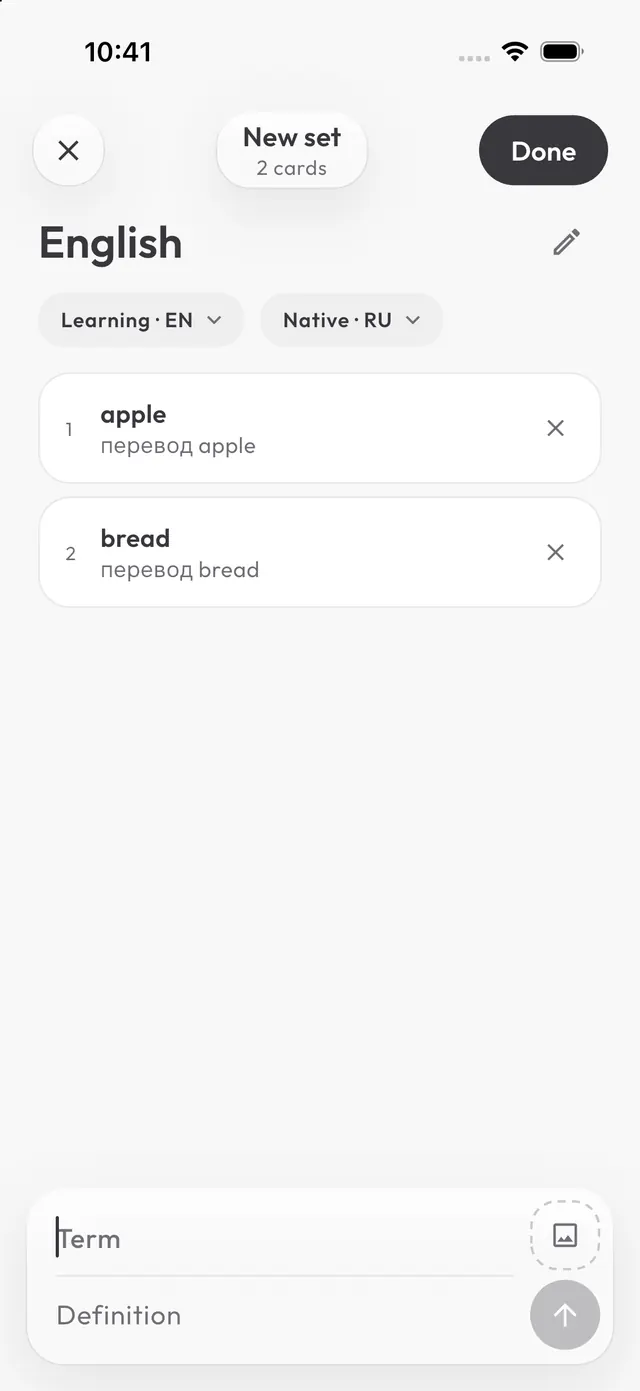
Type a word and its translation, line after line, like in a notes app. Picture, example and pronunciation are optional.
- Fast entry
- Photo per word
- Import a file
Vocabulary flashcards and grammar courses. You type the answer yourself, and the app remembers when to show a word or rule again.
↓ scrollType a word and its translation, line after line, like in a notes app. Picture, example and pronunciation are optional.
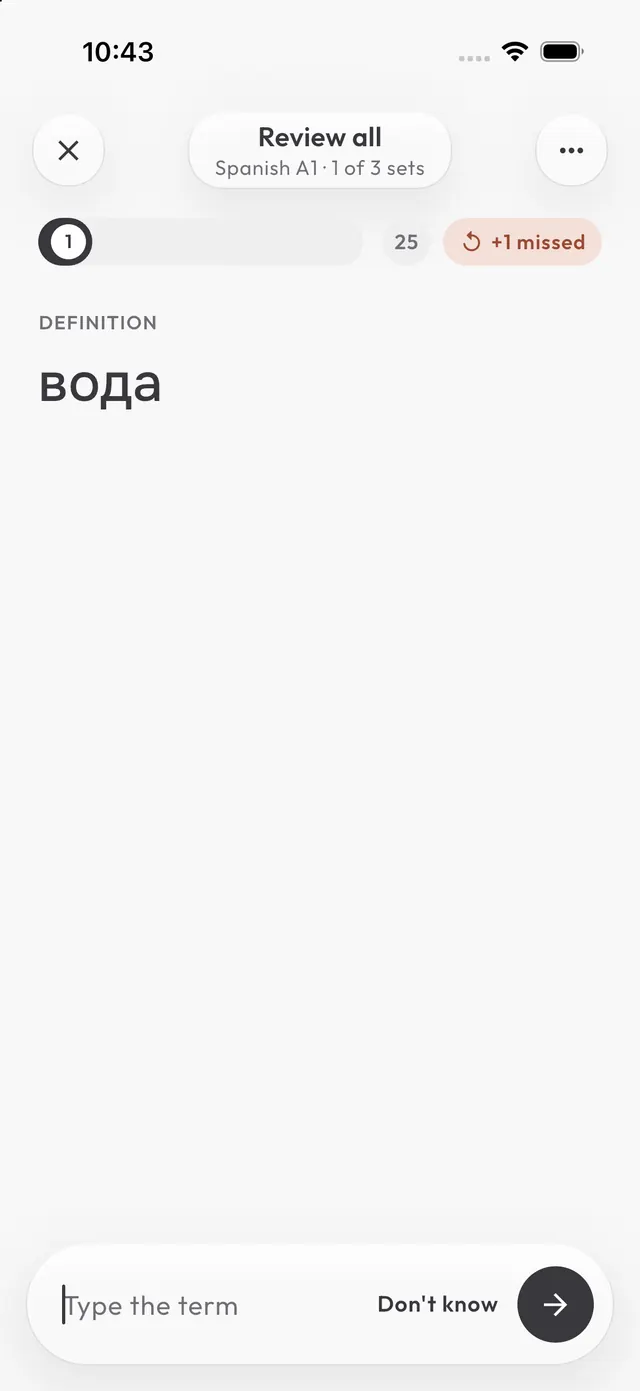
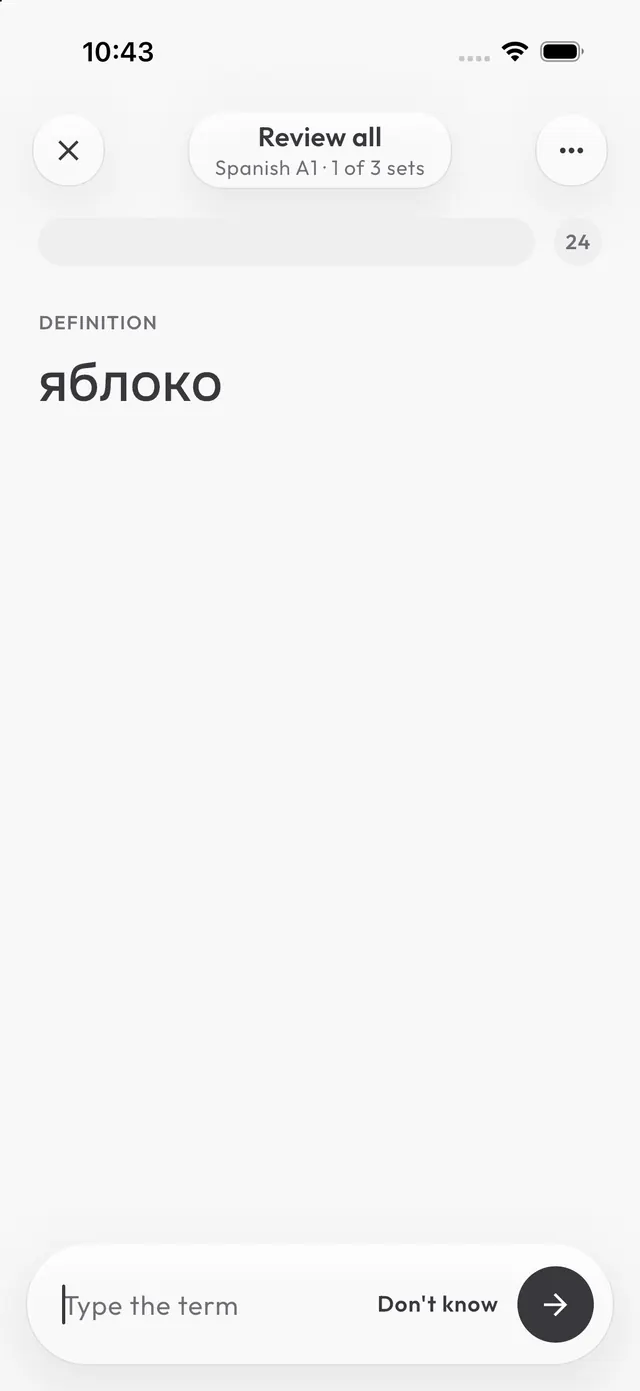
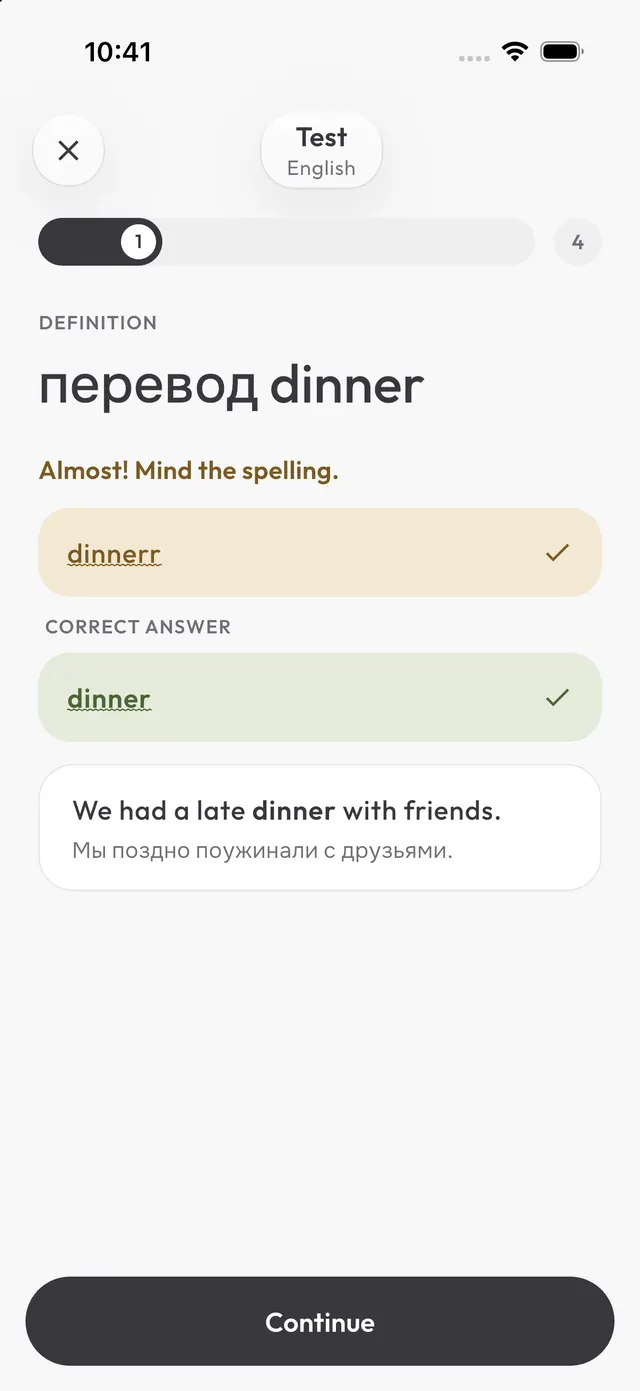
You see the translation and type the word. One typo in a long word is forgiven; a missing accent is not.
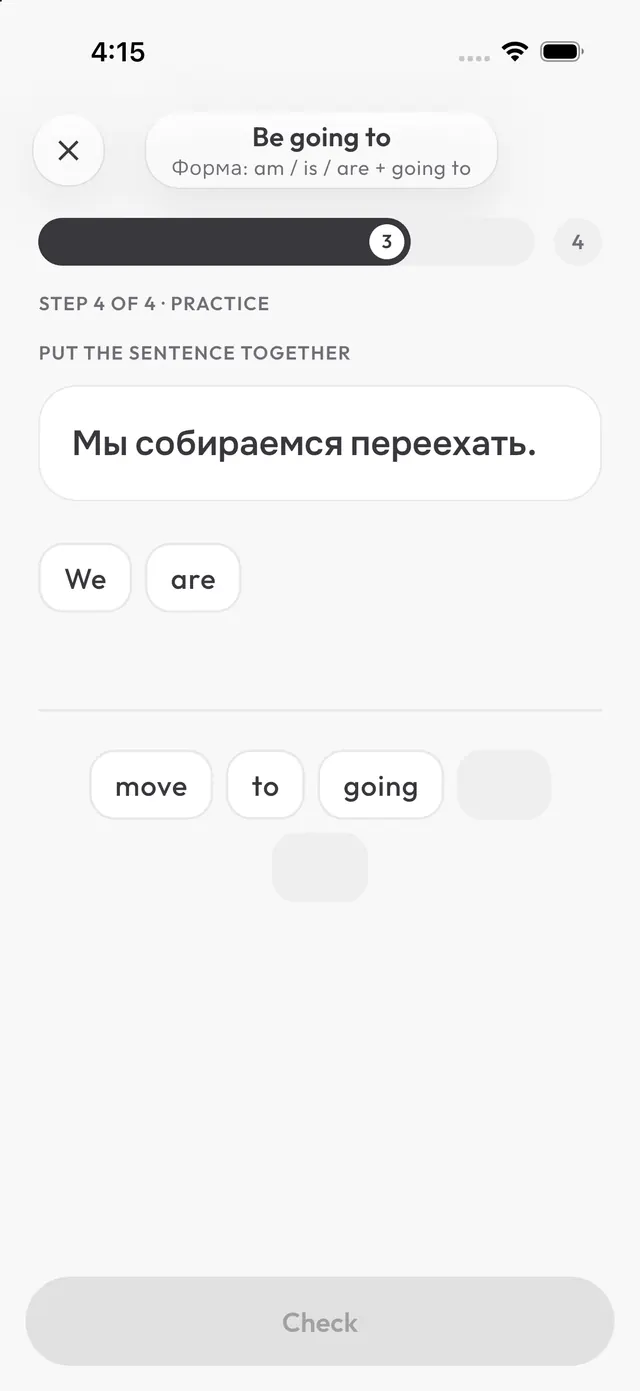
A short rule with a formula and examples, then practice right away: fill the gap, pick the form, build the sentence, spot the mistake.
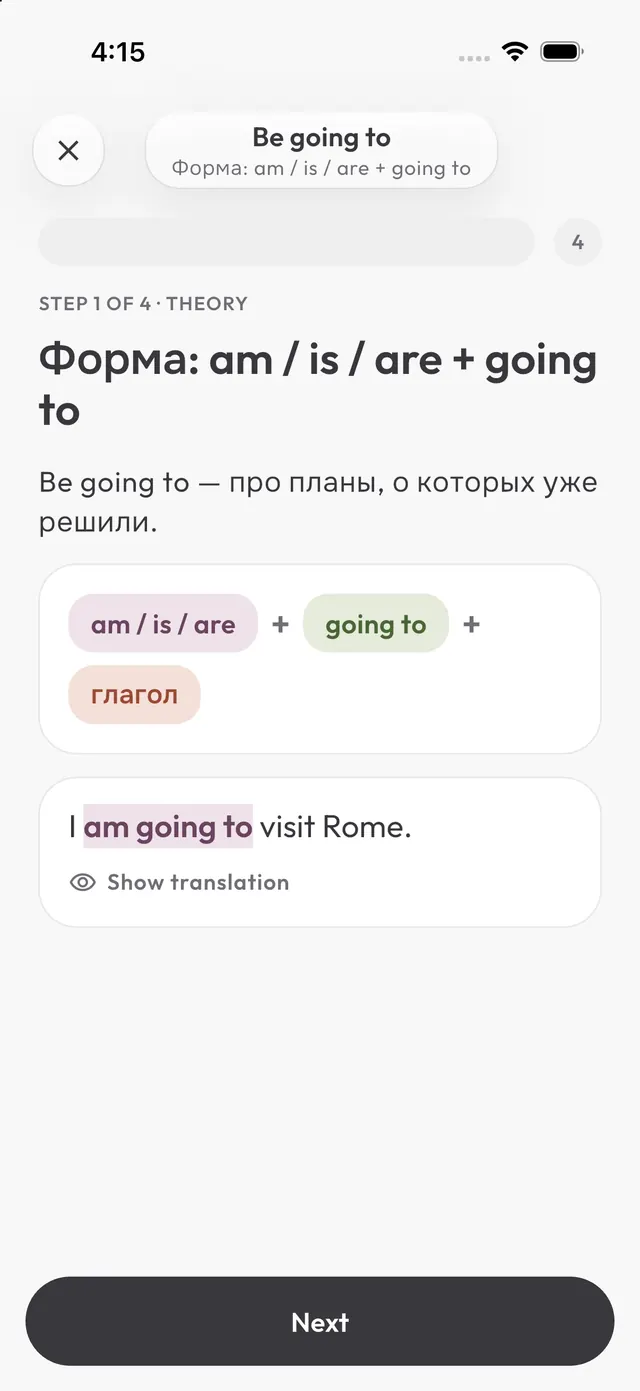
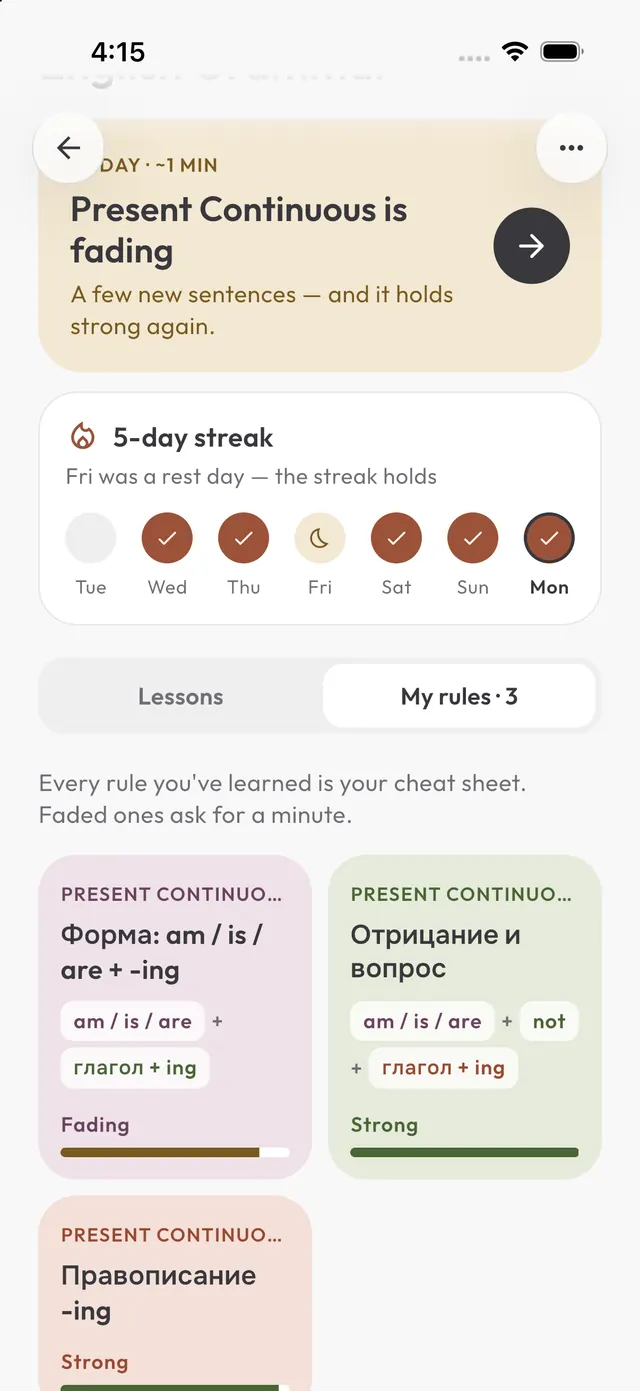
The FSRS algorithm brings back a word or rule just as you start to forget it. A rule comes back with new sentences every time.
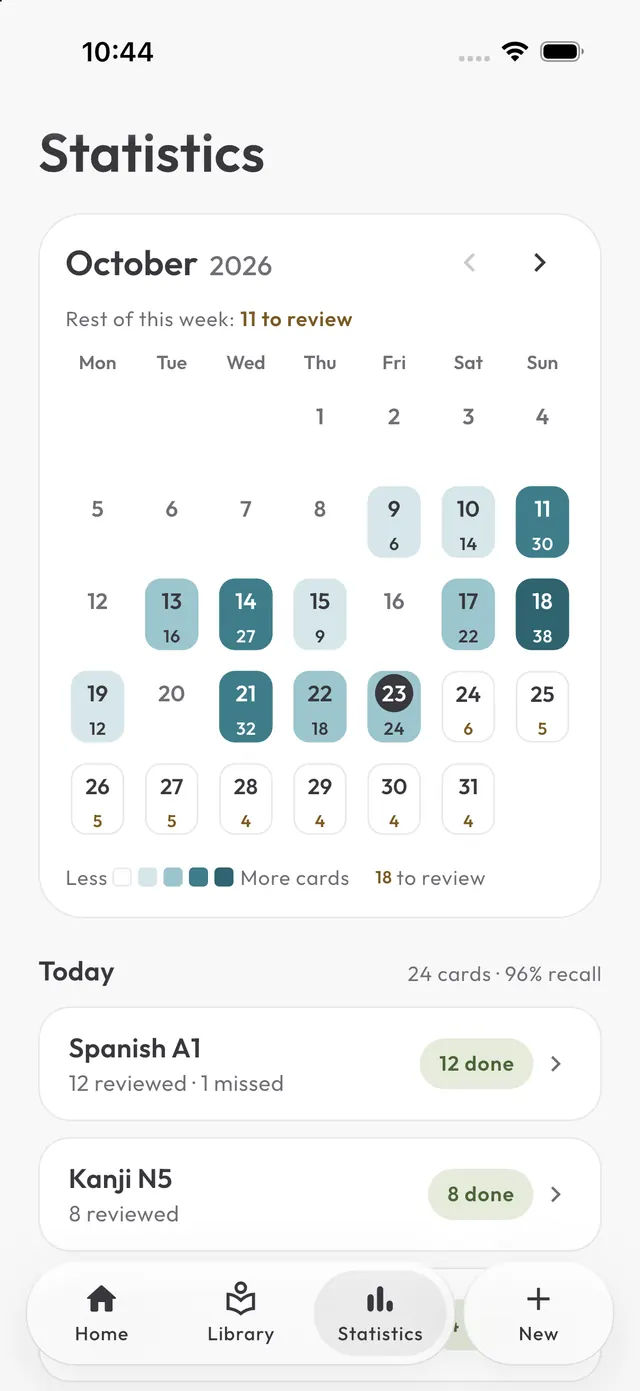
The calendar shows how much you reviewed each day and what is coming up. Your streak is on the home screen.
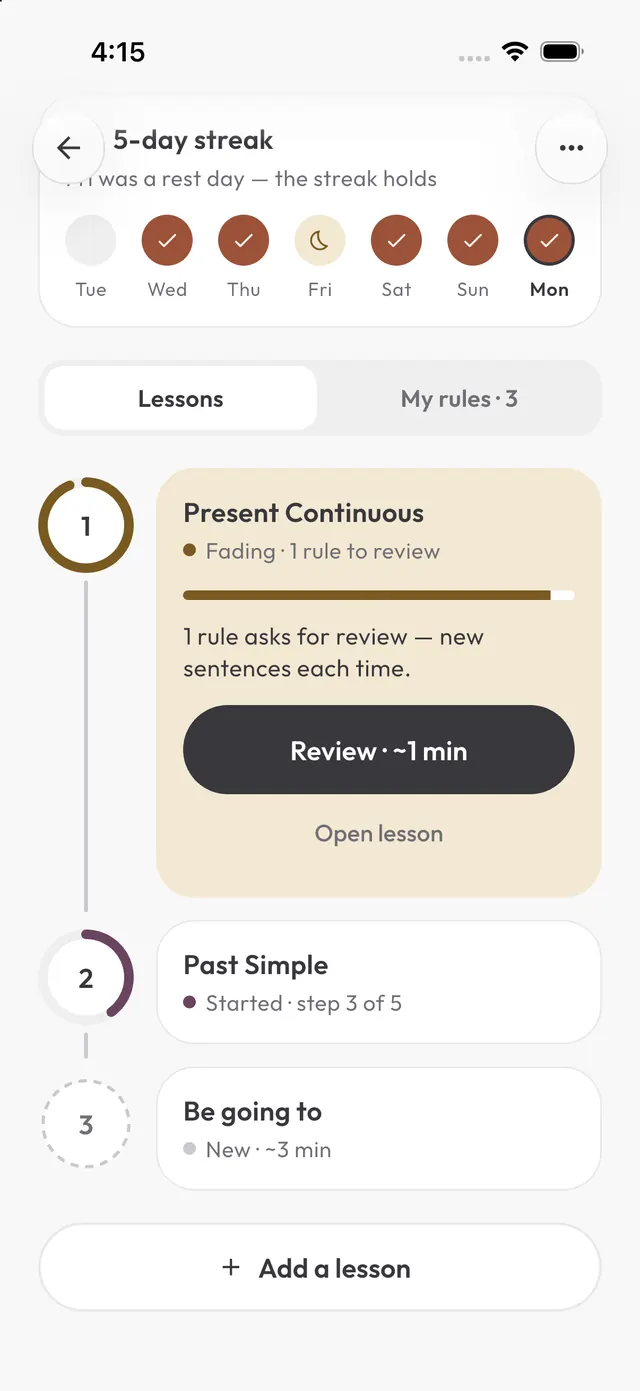
English grammar with explanations in Russian. Download a course file to your iPhone and open it in Jattap from Files or via AirDrop.
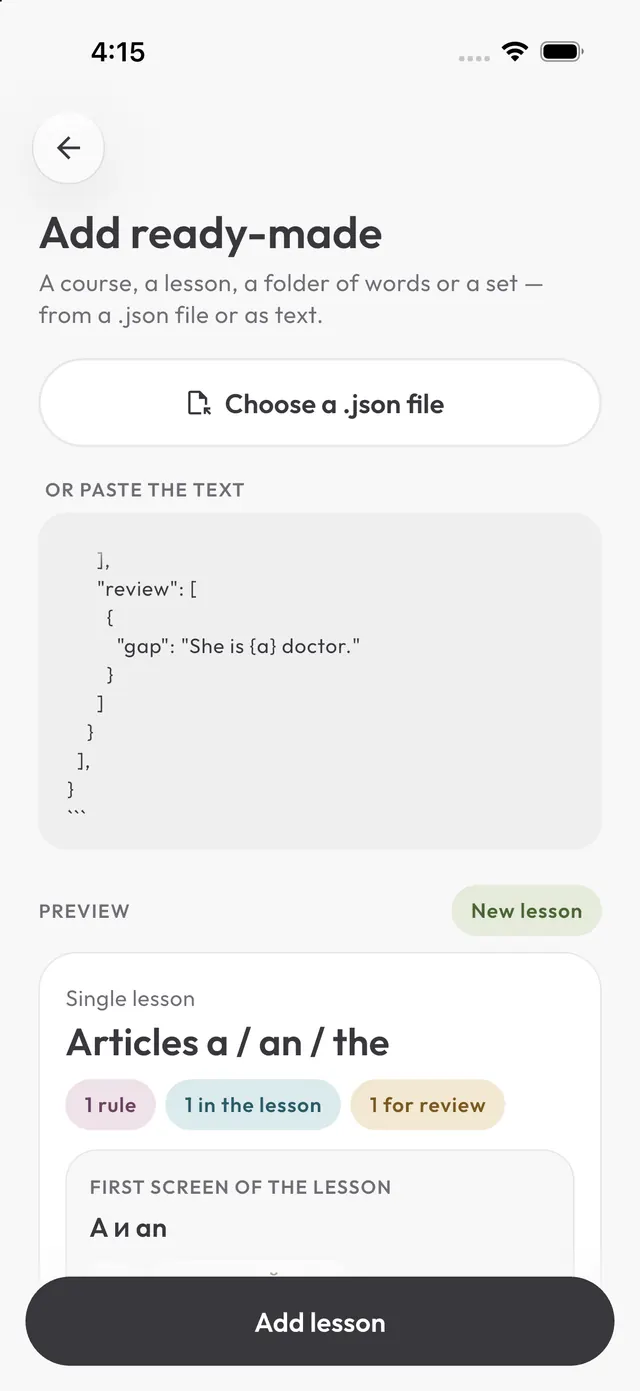
You write grammar lessons for the Jattap app. Answer with ONE JSON object and nothing else.

FORMAT
{
  "format": 1,
  "kind": "lesson",
  "id": "<short-latin-id, e.g. present-continuous>",
  "title": "<lesson title>",
  "subtitle": "<one line: what it is for>",
  "targetLang": "<language being learned, BCP-47, e.g. en>",
  "nativeLang": "<learner's language, BCP-47, e.g. ru>",
  "level": "<A1..C2>",
  "points": [ <2–4 rules> ]
}

A RULE ("point"):
{
  "id": "<short-latin-id, unique in the lesson>",
  "title": "<rule name, unique in the lesson>",
  "theory": [ <3–7 blocks> ],
  "practice": [ <4–6 sentences shown in the lesson> ],
  "review": [ <15–25 OTHER sentences kept for spaced review> ]
}

THEORY BLOCKS (write explanations in the learner's language):
- "a plain string"                                   — a paragraph
- {"formula": ["am / is / are", "+", "verb + ing"]}  — parts are colored; "+" and "?" stay grey
- {"table": [["I", "am", "reading"], ["He · She · It", "is", "reading"]]}
- {"ex": "Look! It [is raining].", "tr": "<translation>"}  — [ ] highlights the rule
- {"tip": "<markers, contractions, exceptions>"}
- {"wrong": "<typical mistake>", "right": "<correct version>"}

SENTENCES — exactly ONE of these keys each; mark the answer in { } inside the sentence:
- {"gap": "She {is reading|'s reading} a book.", "hint": "read", "tr": "...", "why": "..."}
    the learner types the part in { }; extra accepted variants go after |
- {"choice": "The kids {are} playing.", "opts": ["am", "is"], "tr": "..."}
    "opts" are WRONG options only
- {"order": "I am cooking dinner now.", "tr": "..."}
    the learner builds the sentence from shuffled words; "tr" is the prompt
- {"fix": "They {play>are playing} football.", "tr": "..."}
    { wrong > right }: the learner taps the wrong word
"hint", "tr" (translation into the learner's language) and "why" (one short reason) are optional but welcome.

RULES
- Every sentence is natural, short (4–12 words) and different from all others.
- Review sentences never repeat practice sentences: review must test the rule on new material.
- Mix all four kinds in practice and in review.
- In { } put the full form first, contractions after |: {had better|'d better}, not {'d better|had better}.
- The answer in { } must not appear earlier in the same sentence as a separate word.
- No curly braces { } anywhere except to mark the answer.
- Output valid JSON: double quotes, no comments, no trailing commas, nothing before or after the object.

LESSON: <topic, e.g. Present Continuous>
LEVEL: <e.g. A2>
LEARNER'S LANGUAGE: <e.g. Russian (ru)>
LANGUAGE BEING LEARNED: <e.g. English (en)>
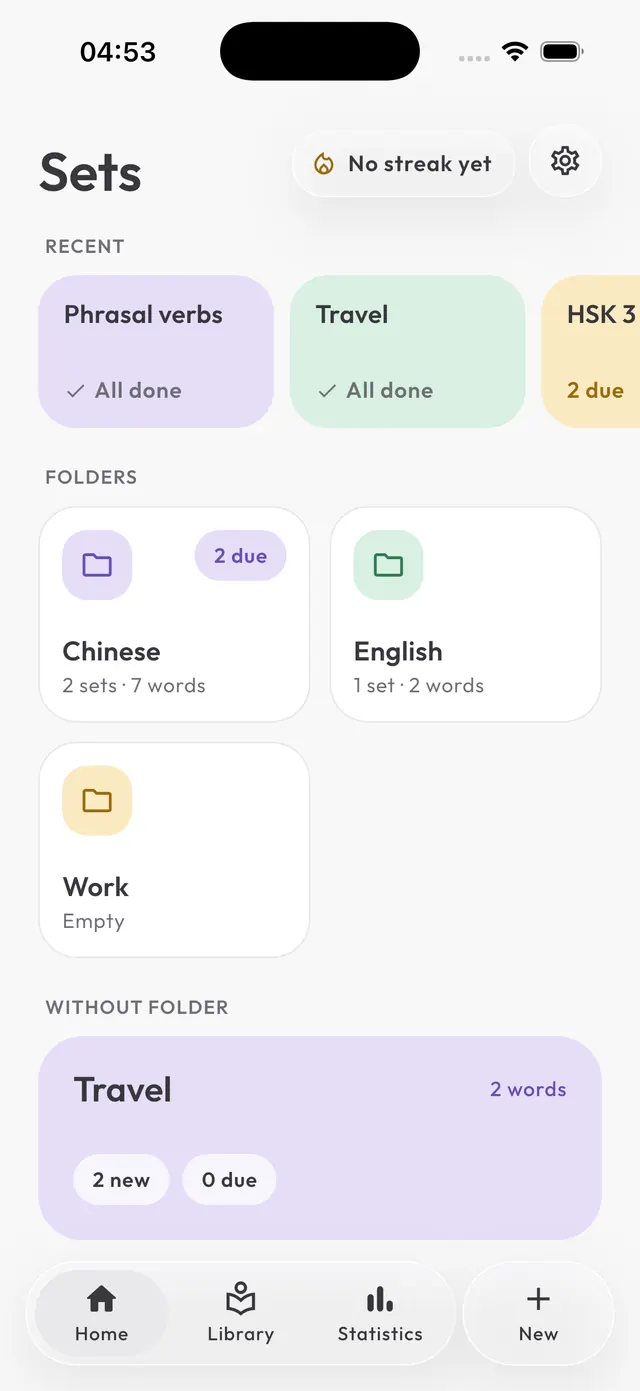
A set is a list of words on one topic. Start with 10–20 words.
Tap a word to open its card: translation, picture, example and accepted answers.
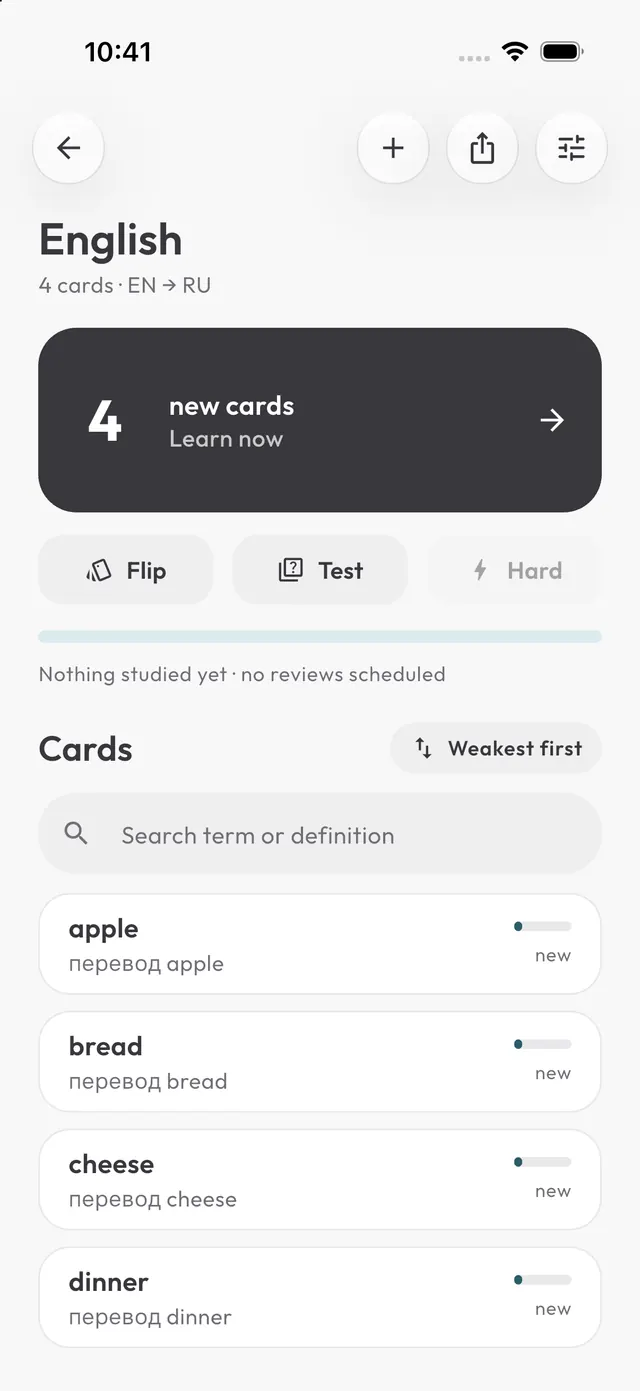
The app shows the translation and you type the word. You remember the spelling, not just recognize it.
One typo in a word longer than four letters is forgiven and highlighted. Accents are not: café is not cafe.
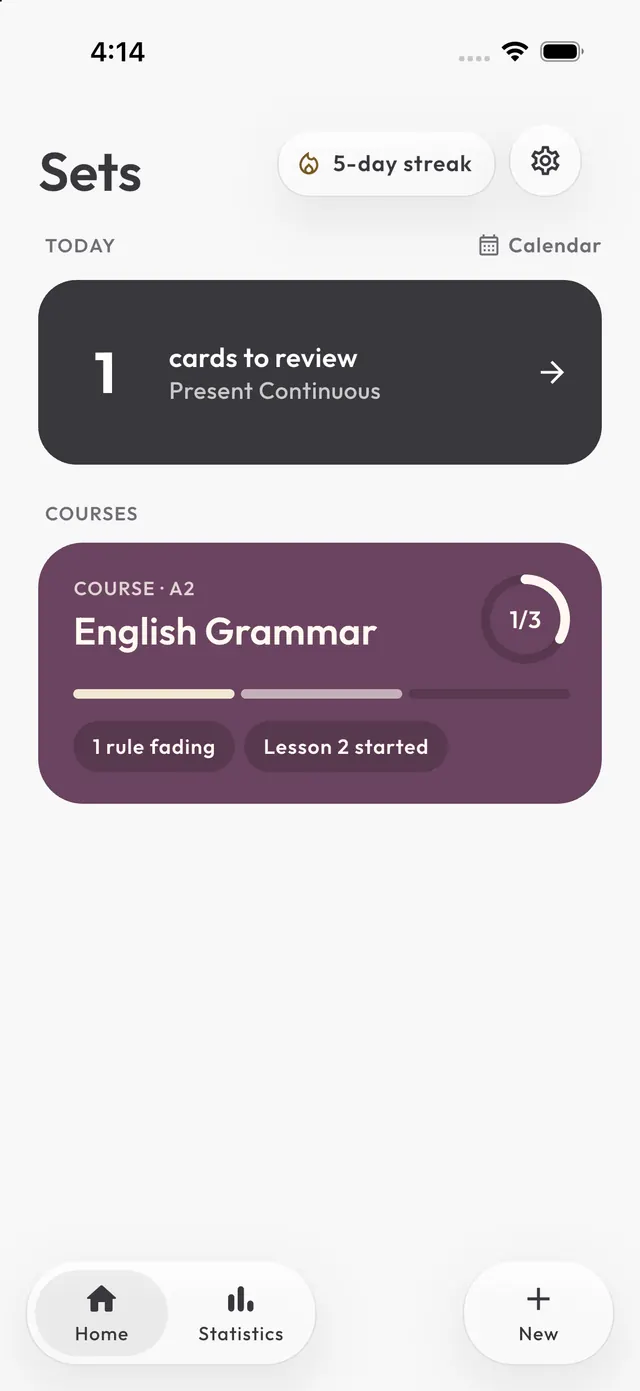
A course is a path of lessons. The ring on the left shows how well you remember each lesson’s rules. Start anywhere.
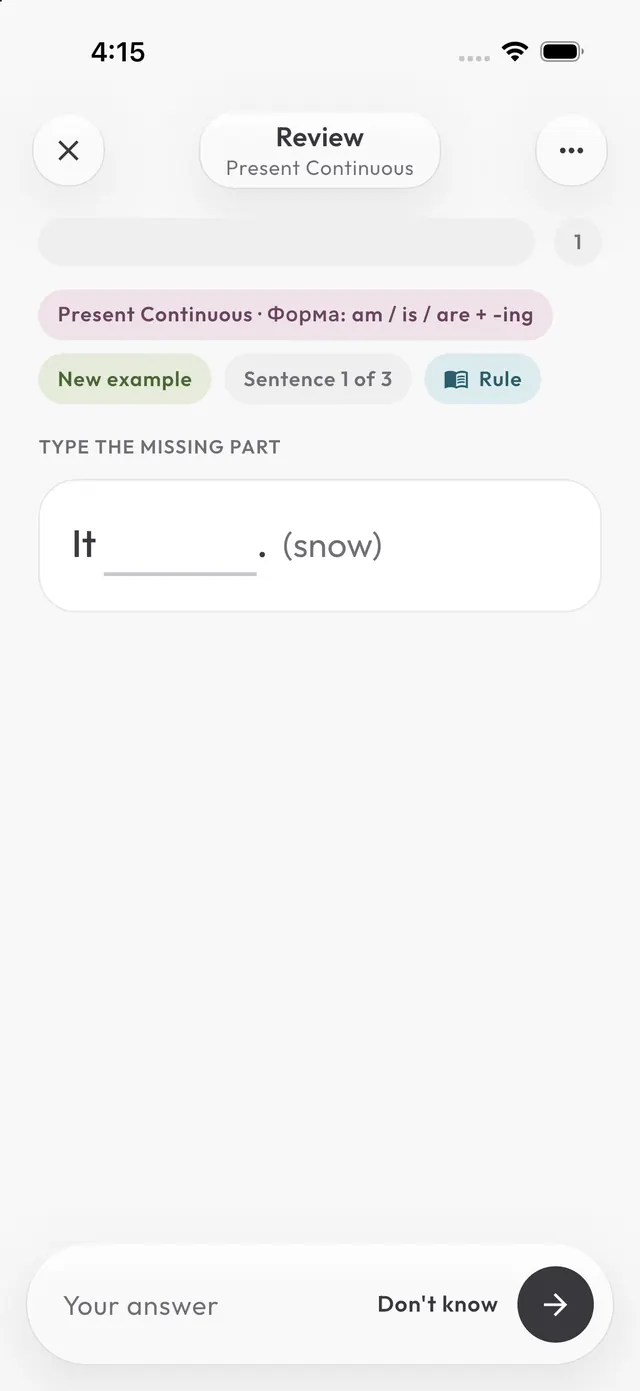
First the rule: formula, table, examples. Then practice on it: fill the gap, choose, order the words, spot the mistake.
A learned rule comes back for review like a word, but each time with three new sentences. It counts if you get at least two right.
Turn any topic into a lesson with an AI: the prompt is on this site, the answer goes into the app.
Every day the home screen shows how many words and rules are due. Got one wrong? It comes back in 10 minutes.
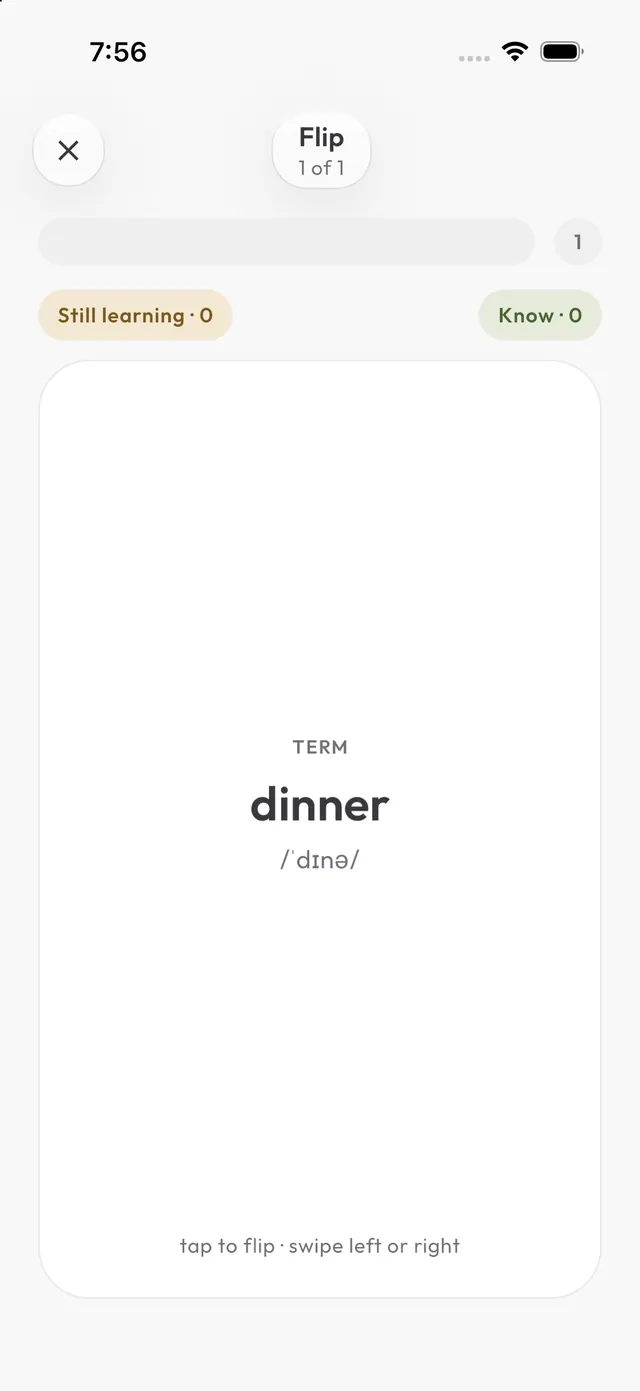
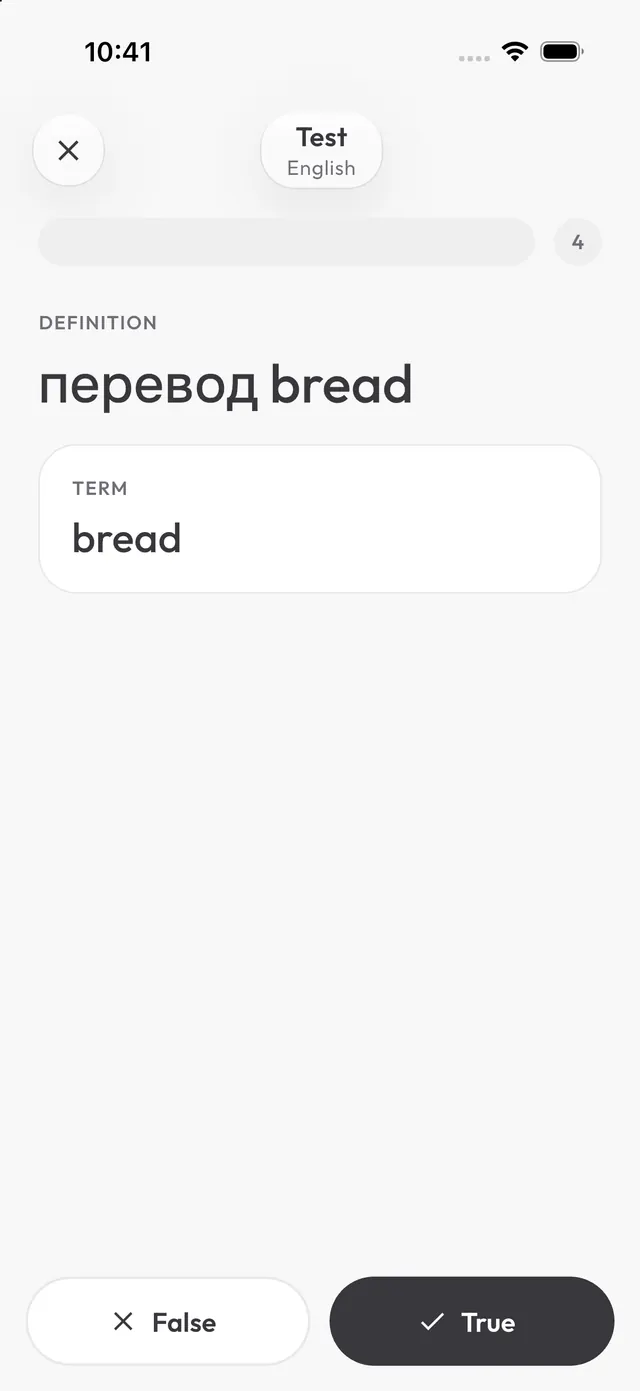
Test checks the whole set with different question types. Flip is cards: left for “Still learning”, right for “Know”.
Group sets by topic. Deleting a folder deletes the sets inside — the app asks first.
The brighter the day in the calendar, the more you reviewed. Tap a day to see what you reviewed and where you slipped.
Save a set or folder as a .json file and send it to a friend. The file holds words, not progress.
New words in batches of five. You type the answer; the app notes what is harder for you.
New words in batches of five. You type the answer; the app notes what is harder for you.